How to turn daytime listing photos into dusk photos
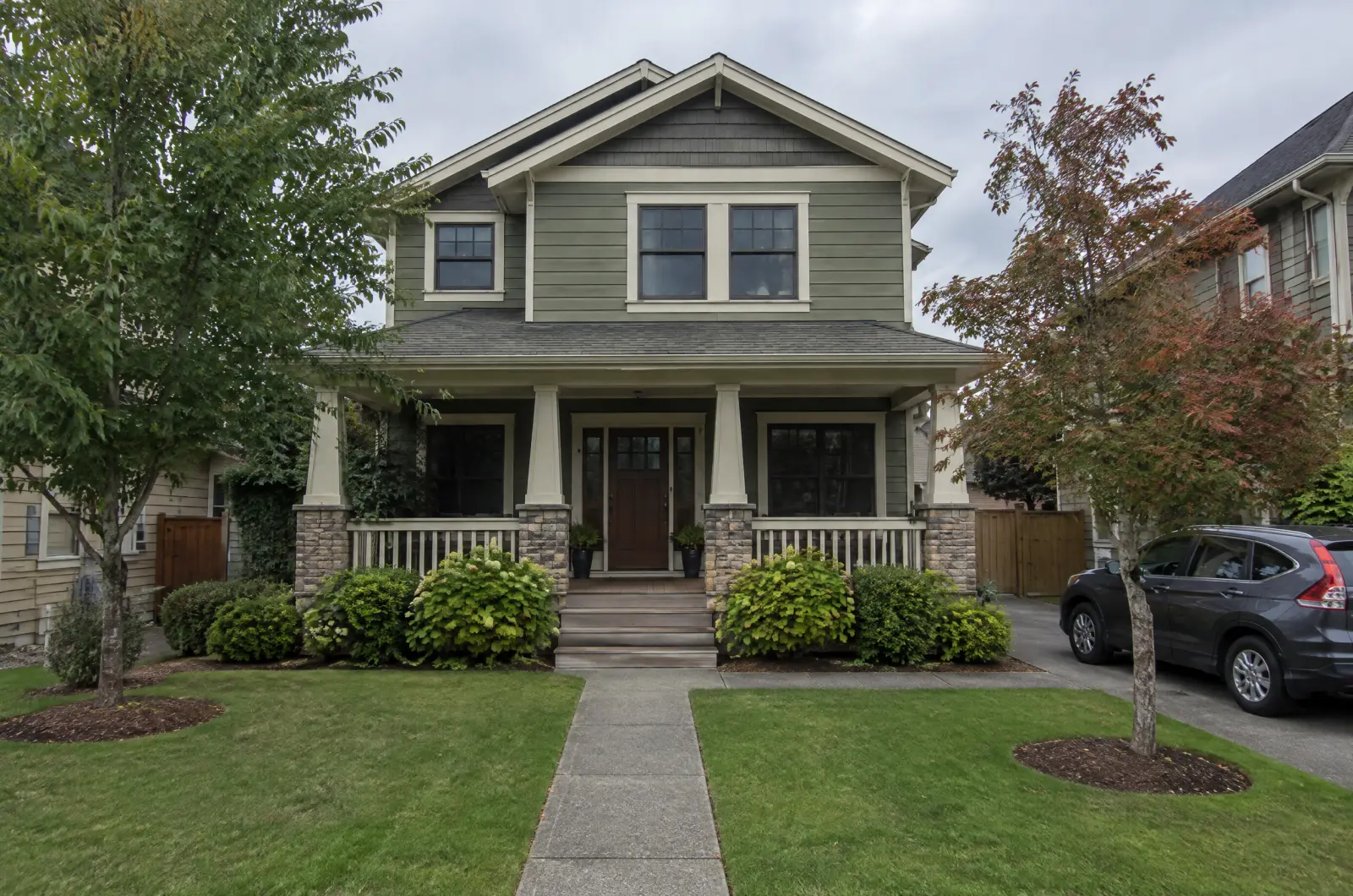
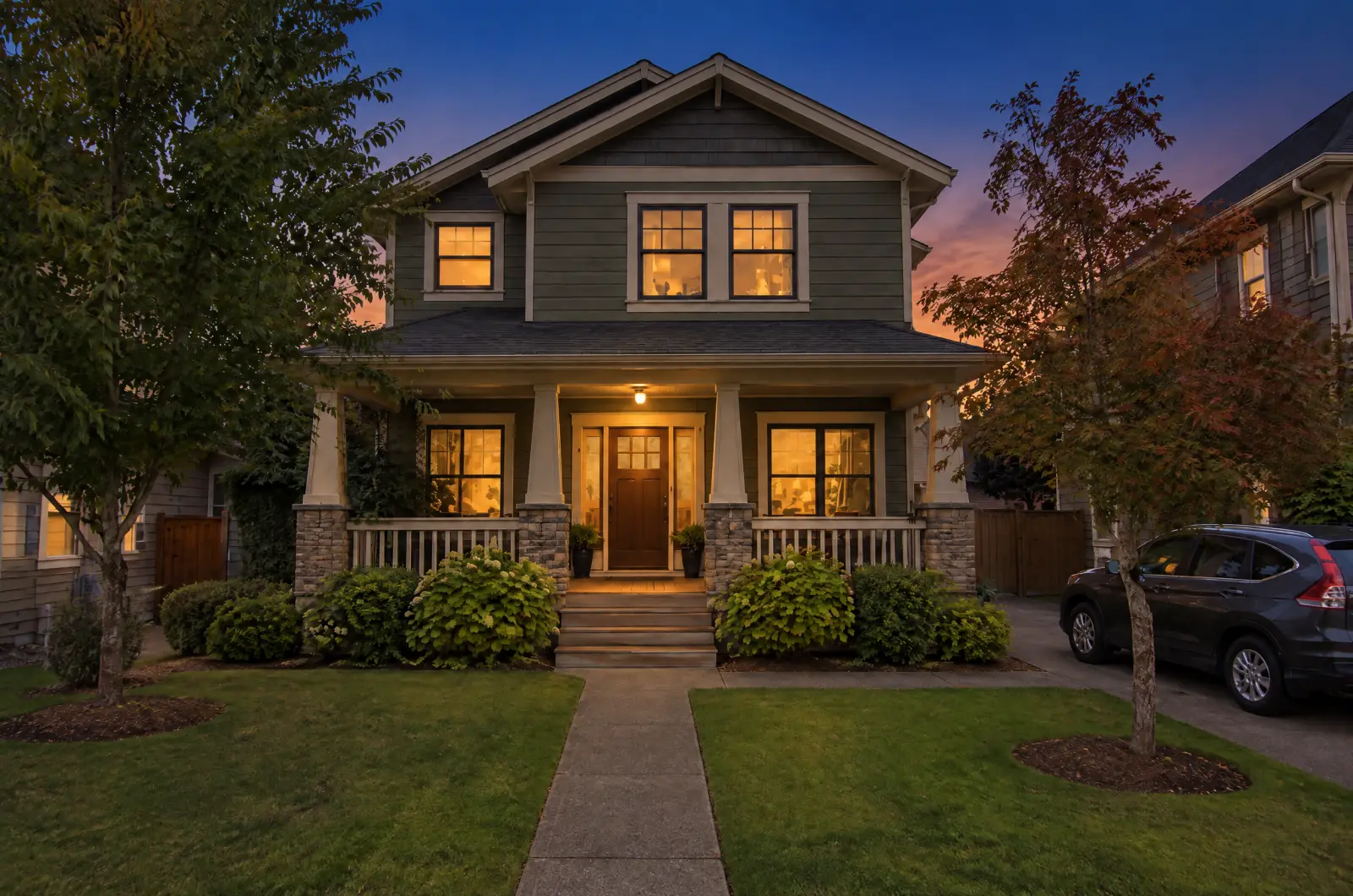
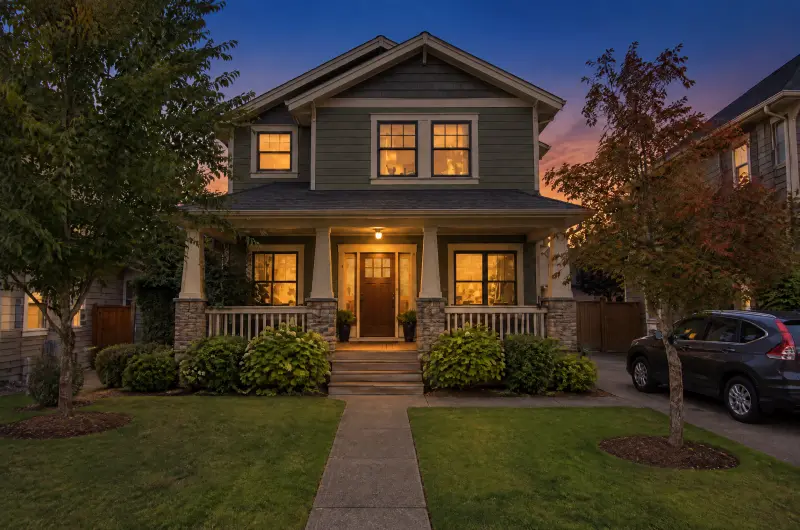
Most listing photos are taken in the middle of the day. A dusk exterior, often called a virtual twilight or day-to-dusk edit, shows the same house under a blue-hour sky with its windows lit. Here is how to make one from the photos you already have.
Updated
What you need
One or more daytime photos of the outside of the place. They work best when:
- The building is in full view, with its windows visible.
- The lights you want on already exist: window, porch, path and garden lights. Lighting turns on what is there; it doesn't add new lights.
- The sky is any colour. A grey or white sky is replaced.
- Nobody is in the foreground. The image service may decline photos with people in them, and the credit comes back.
You also need an account. Your first 3 photos are free; after that, each photo costs 1 credit (see plans).
Step by step
Start a listing and add your photos
Open your library, tap New listing, and pick the photos, up to 30. You can also drop them on the page. They start uploading at once, and each tile shows its own progress.
Photos upload as soon as you pick them. Check the Exterior and Interior tags
Each photo is tagged Exterior or Interior by itself. The tag tells Lighting how to treat the photo, so if one is wrong, tap it to flip it.
Tap a tag to flip it. Pick Lighting and the Dusk look
Tap Run a tool. Lighting is picked first; choose Dusk from the looks. The Run button shows the cost, 1 credit per photo, next to your balance.
You see the cost before you run. Run it, and leave if you like
Photos are edited one at a time, and each tile turns into its result as it lands. You can close the tab: the run keeps going, and for runs of more than 3 photos we email you when it is done.
Check each result
Open a result and drag the divider to compare it with your photo. Look at the roofline, the windows and the trees. If something is off, Regenerate tries again for 1 credit, and Report tells us about it.
Download
When you're happy, Download all gives you one ZIP with each photo's current version, as a JPEG with the file's metadata removed.
What Lighting changes, and what it keeps
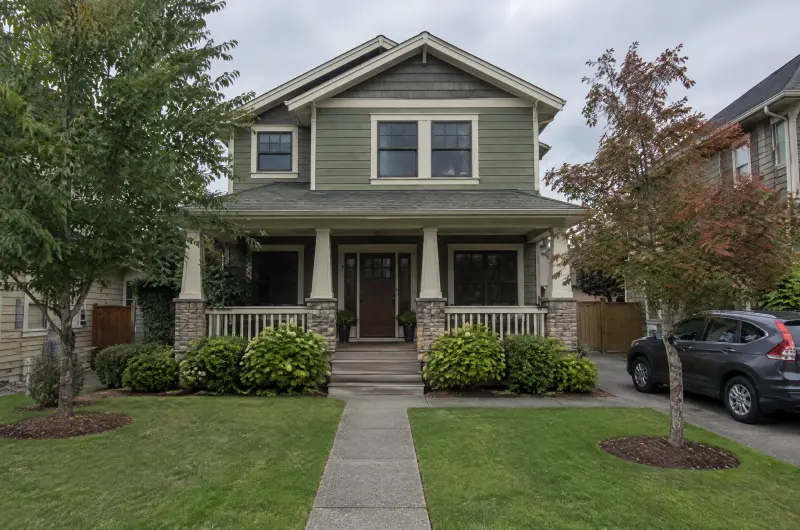
Lighting changes the sky, the ambient light, and the light in windows and fixtures that already exist.
It keeps the building, its materials, the landscaping, trees and cars, the furniture, and the camera position and framing. It doesn't add a structure, a pool or a light that isn't in your photo.
Use the same light inside
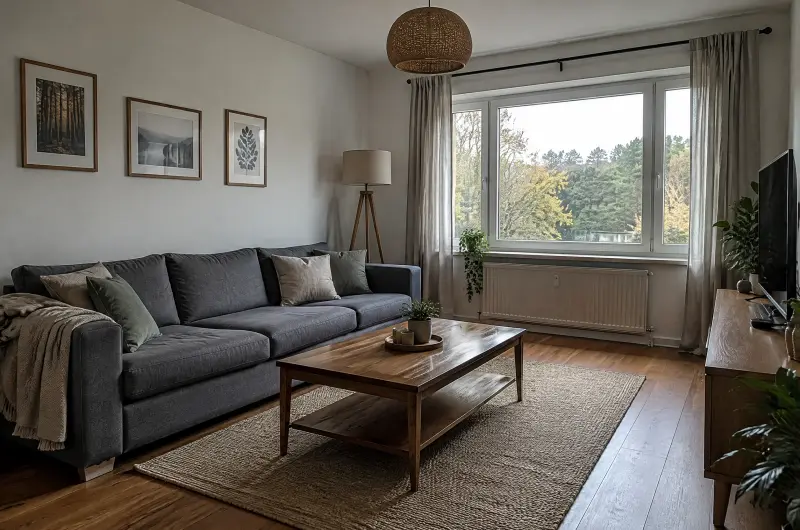
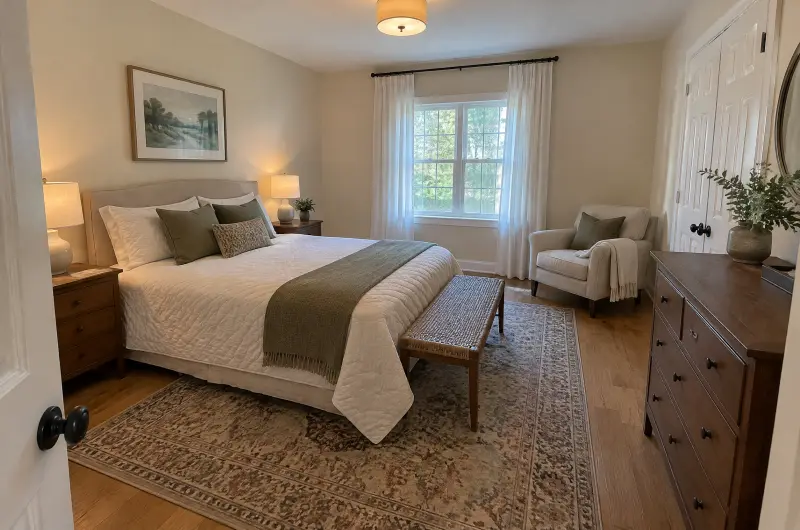
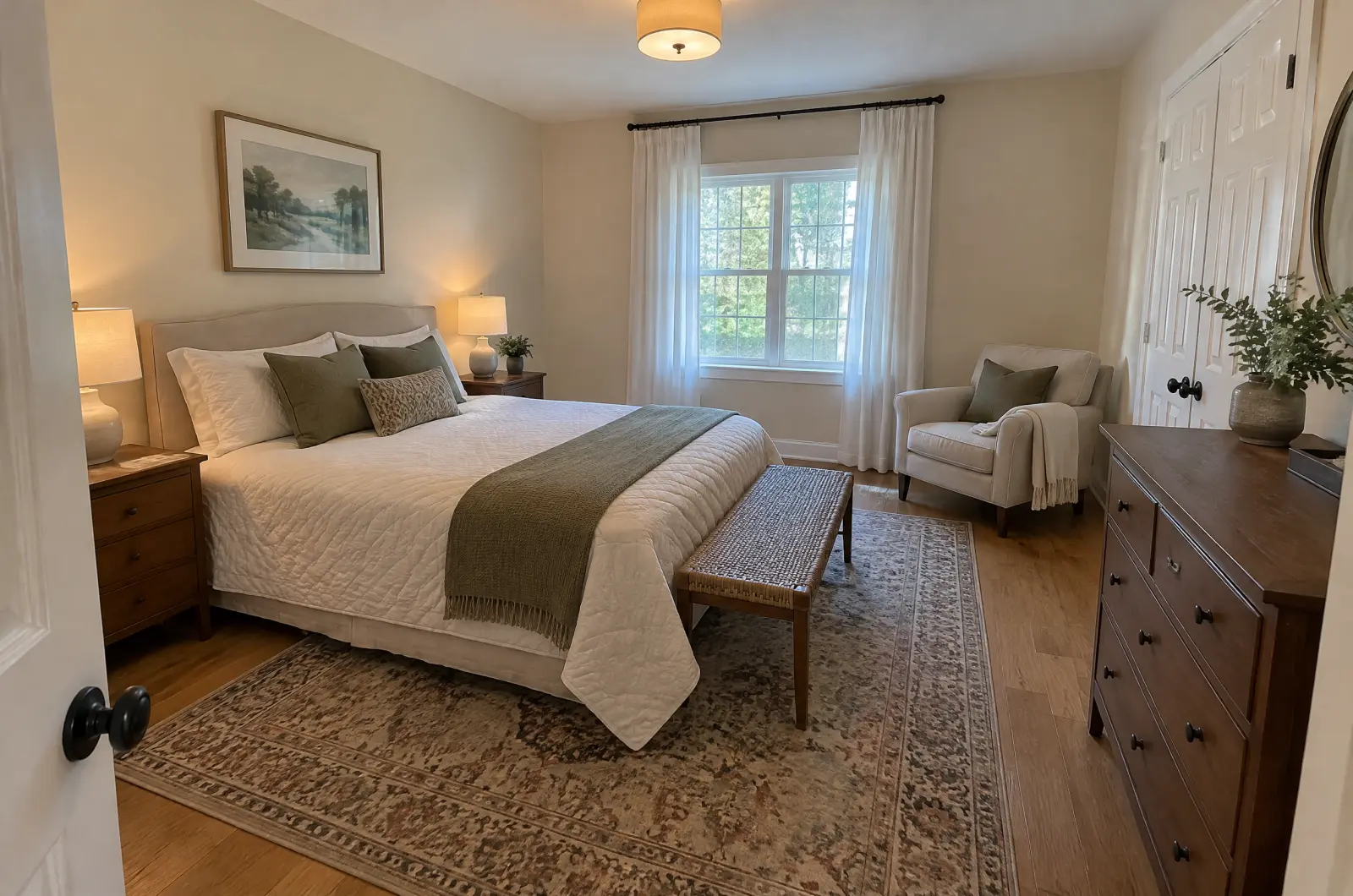
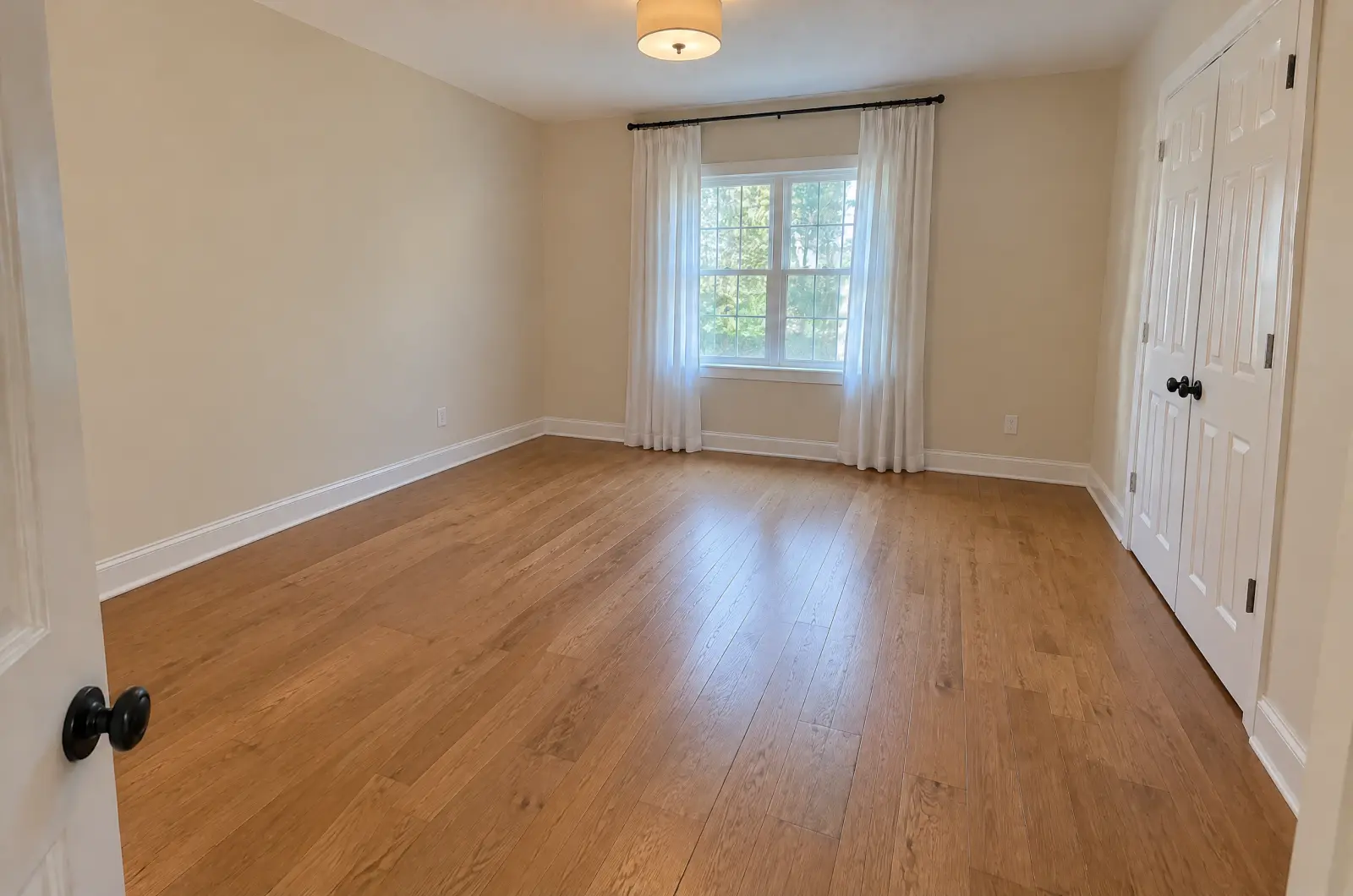
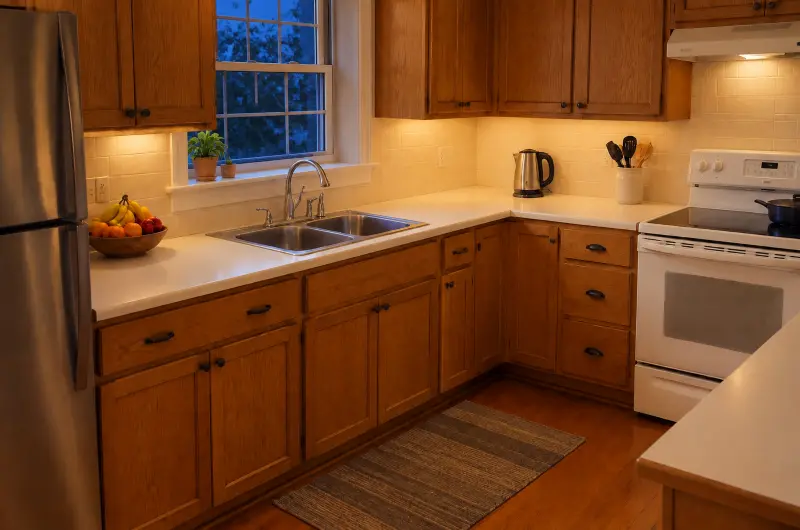
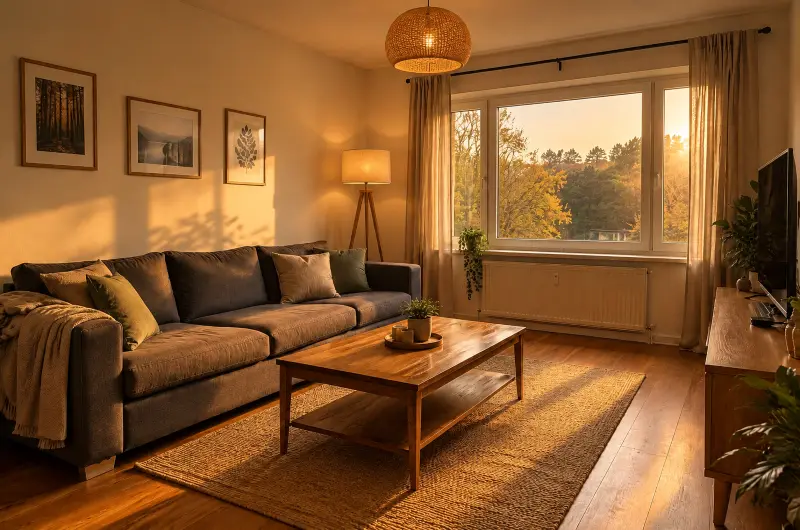
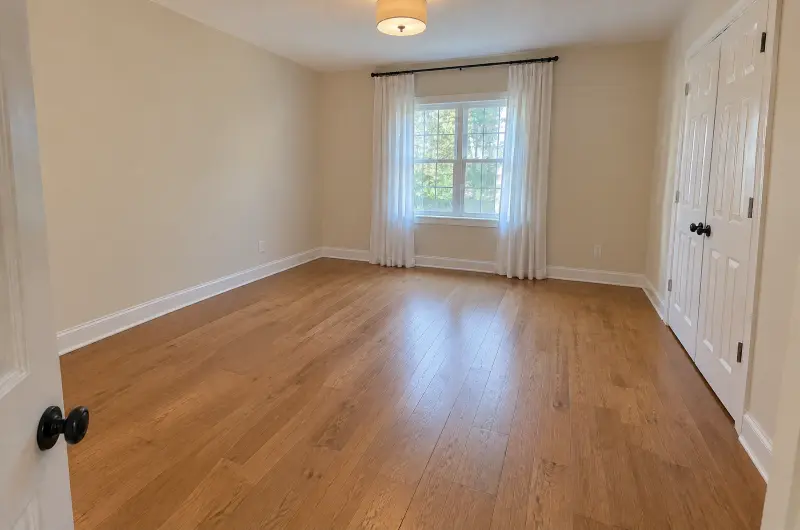
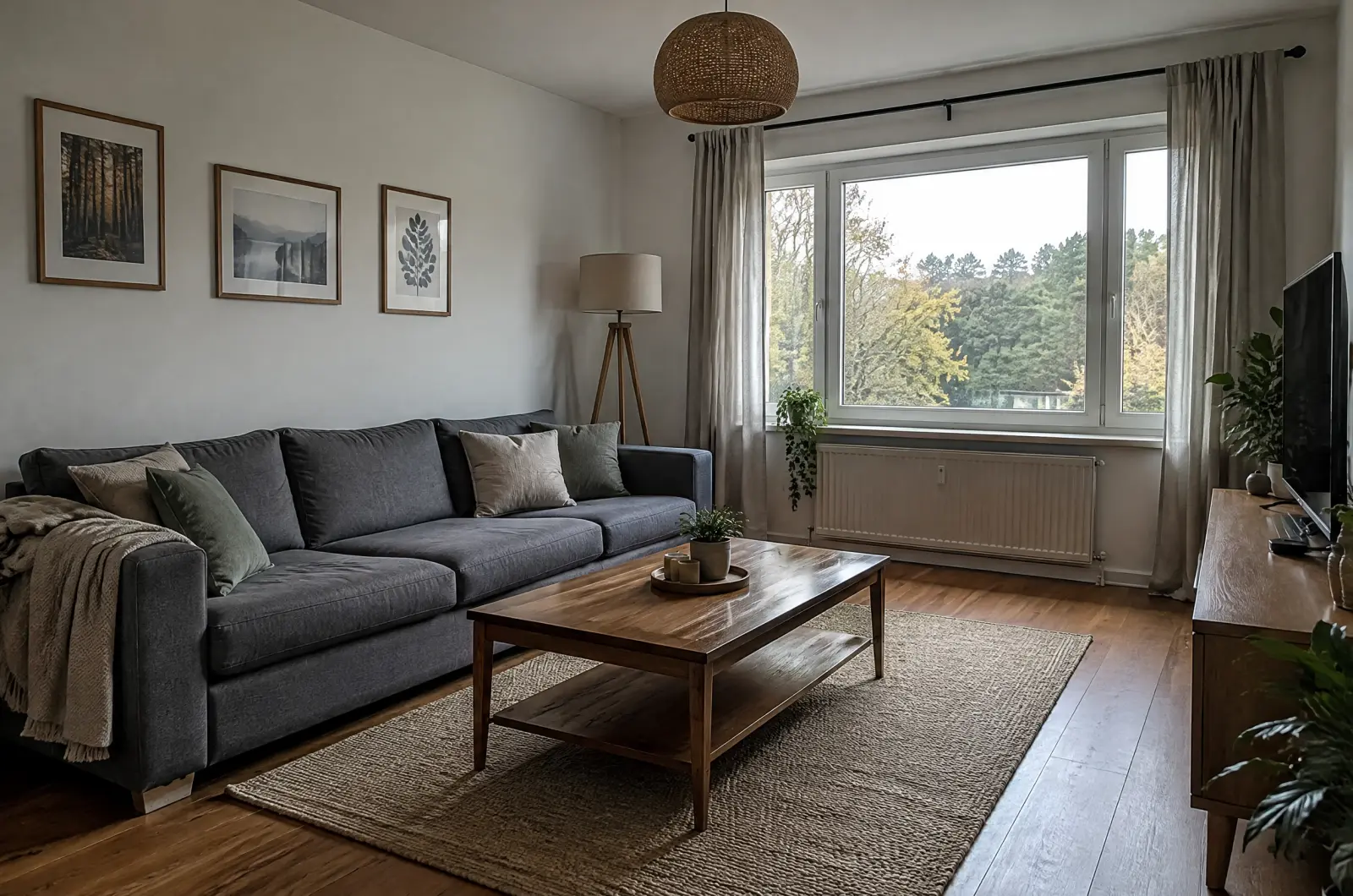
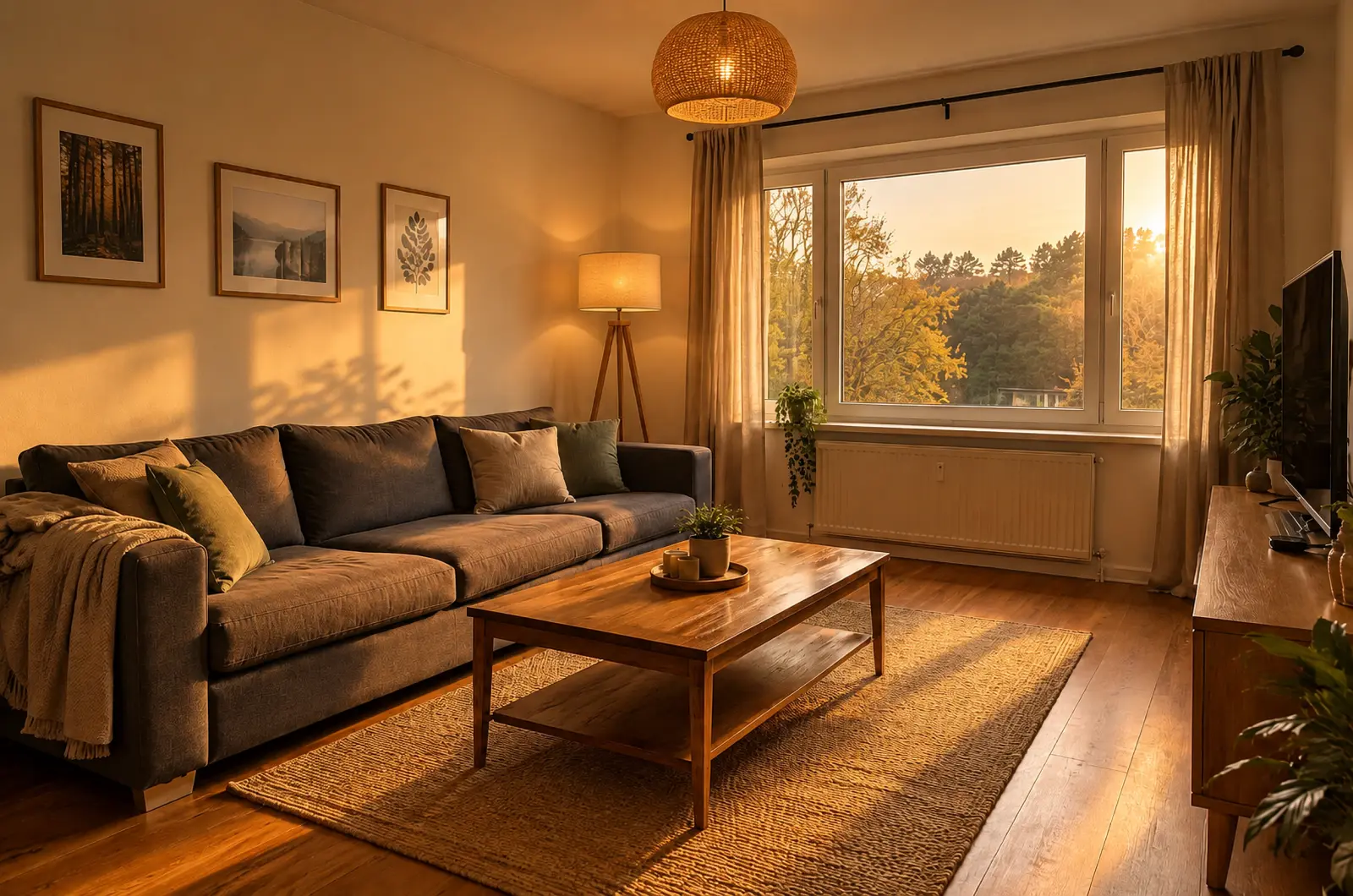
A dusk exterior next to bright midday rooms can look odd in a gallery. Lighting works on interiors too: existing lamps come on and the windows take on the look. Golden hour suits rooms with big windows.
Tips
- Shoot the exterior from a little further back than usual, so the whole roofline and some sky are in the frame.
- Use one look across the listing, so the photos read as one evening.
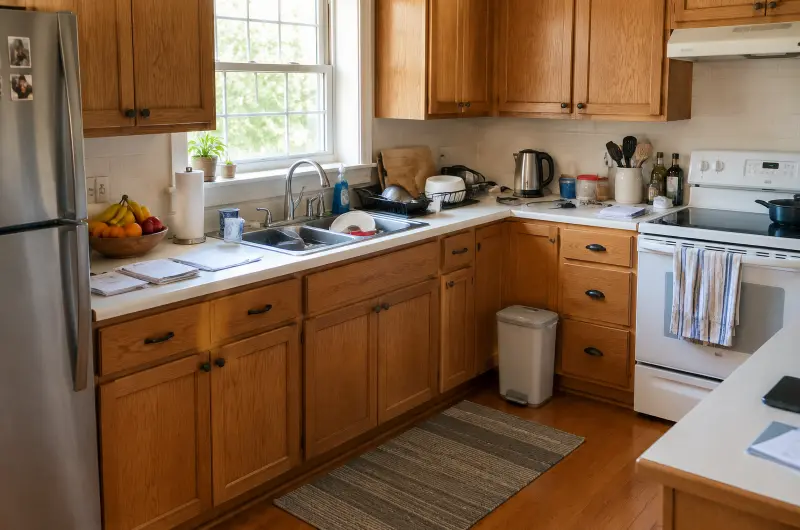
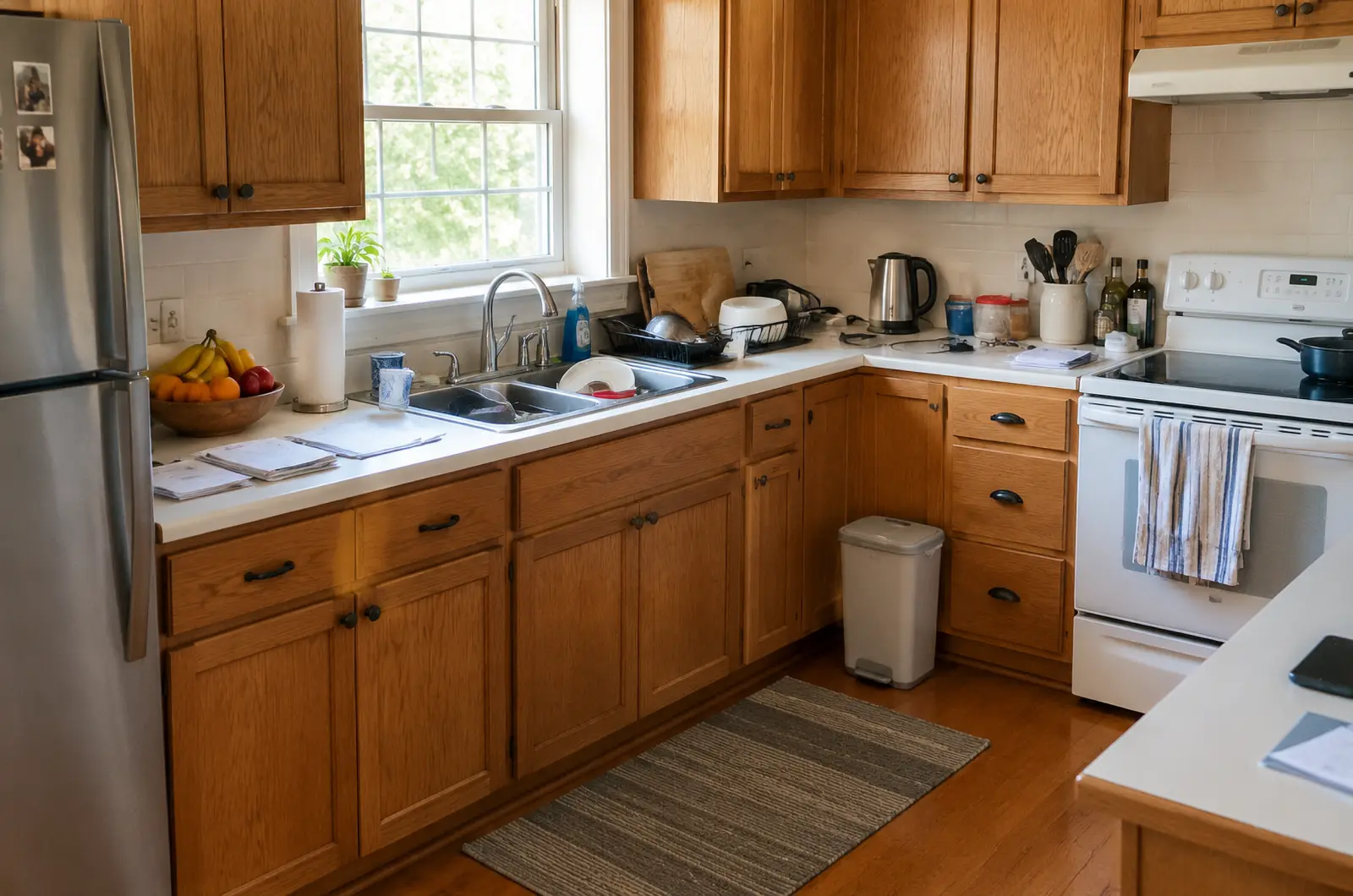
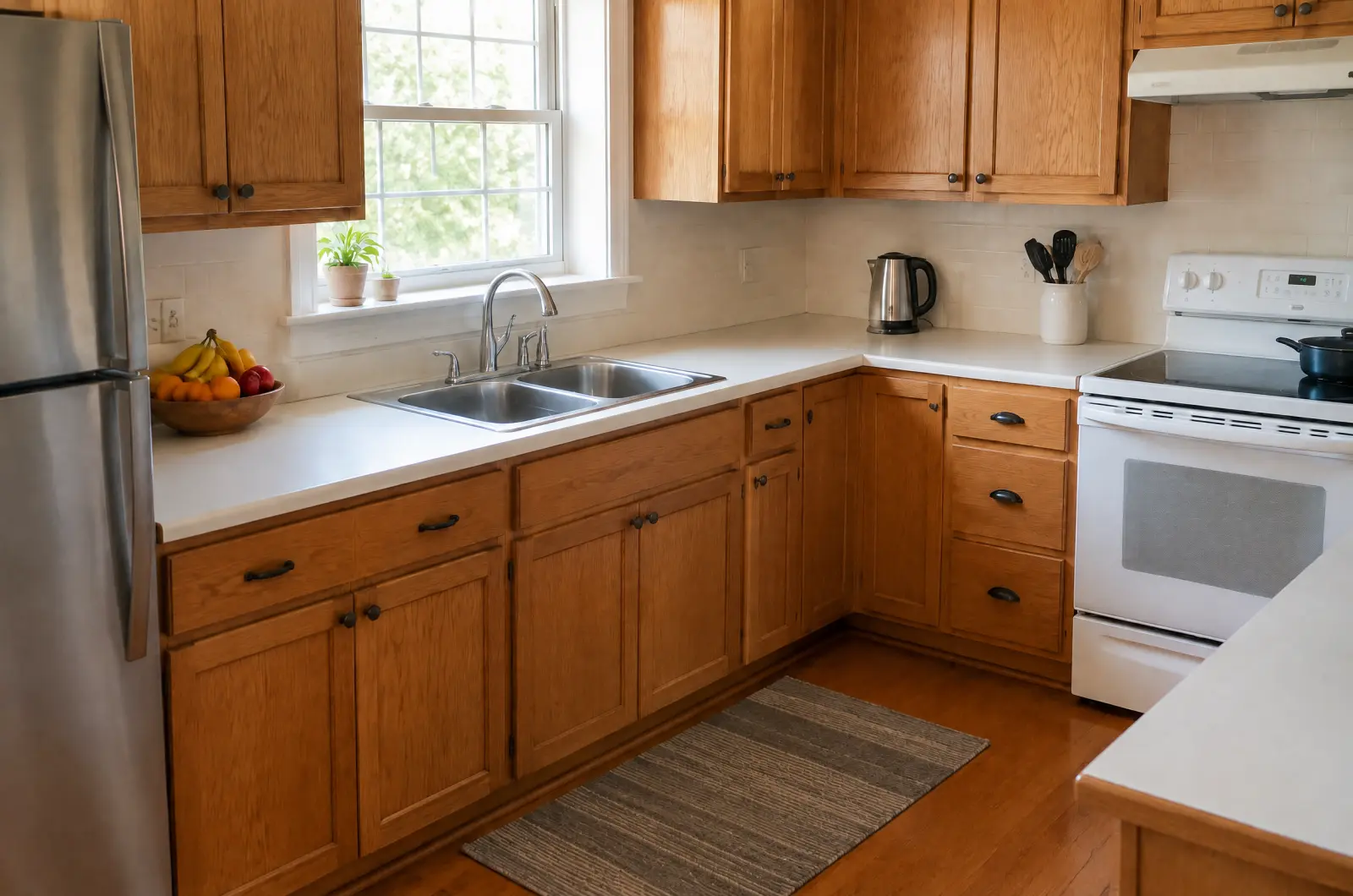
- Clear bins, hoses and toys first: run Tidy up, then Lighting on the latest results.
Try it on your photos
Your first 3 photos are free. After that, each photo costs 1 credit.
Try 3 photos free